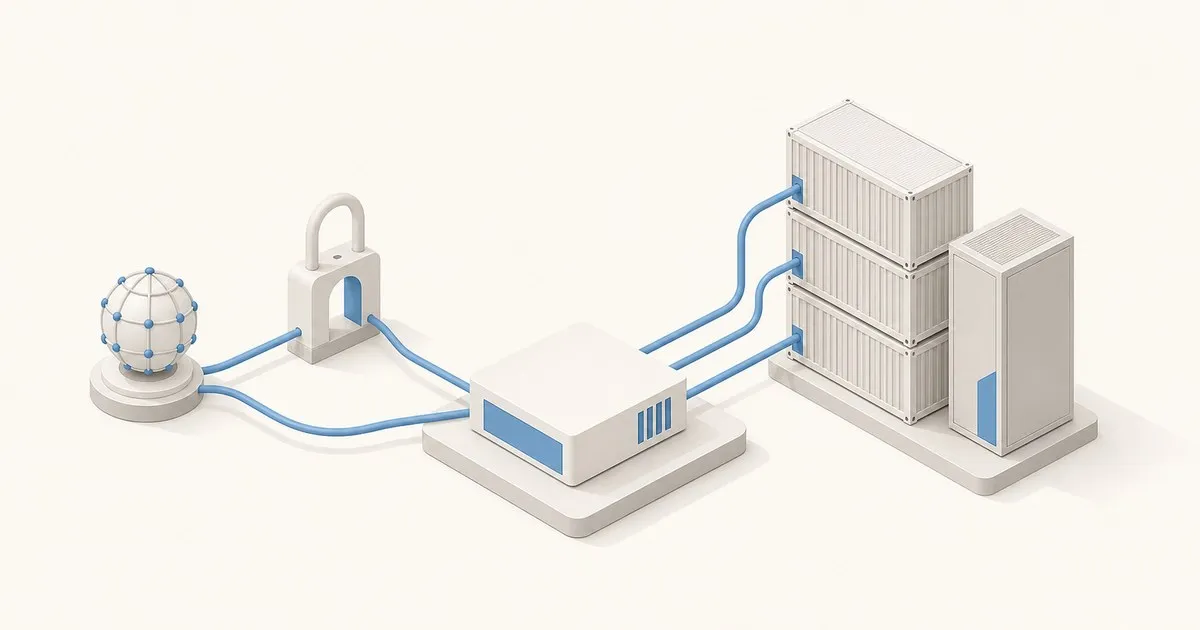
To set up Traefik with Docker Compose, run the traefik:v3.7 image with --providers.docker=true, mount /var/run/docker.sock read-only, publish ports 80 and 443, then give each service two labels: traefik.enable=true and a Host() router rule. Traefik watches Docker, discovers labelled containers as they start, and routes each hostname to the right one; HTTPS takes one more label.
That gives every container clean domain-based routing instead of :8080, :9000, :5000 on every service. Because Traefik v3 reads Docker labels directly, routing rules live in the same docker-compose.yml as the service itself. No separate config file to maintain, no reload required when you add a new container. If you would rather click through a UI than write labels, Nginx Proxy Manager is the alternative.
The current release, checked in October 2026, is Traefik v3.7.14 (6 October 2026), and the official Docker quick start uses the traefik:v3.7 tag, so the examples below pin that minor version.
Traefik Docker Compose Setup in 6 Steps
- Create a project directory with a
docker-compose.yml(plus a.envfile for HTTPS). New to Compose? Start with our first self-hosted stack walkthrough. - Add a
traefikservice ontraefik:v3.7with--providers.docker=trueand--providers.docker.exposedbydefault=false. - Define entrypoints (
webon:80,websecureon:443) and publish those ports. - Mount
/var/run/docker.sockread-only. - Label each app with
traefik.enable=true, aHost()rule and an entrypoint; for HTTPS addtls.certresolver. - Run
docker compose up -dand test withcurl http://whoami.localhost.
Part 1 (local HTTP) and Part 2 (HTTPS with Let’s Encrypt) are those steps as complete files.
Who This Is For (And Who Should Skip It)
This is for homelab operators who already know their way around docker-compose up and want to stop juggling port numbers. If you have two or more services and a domain name, Traefik is worth the hour it takes to set up.
Skip Traefik if: you have one service and localhost:8080 is fine. It is overhead you do not need.
Prerequisites for the HTTPS section: a domain name with DNS you control, a public IP, and ports 80 and 443 open. Let’s Encrypt needs to reach your server from the internet for the TLS challenge. If you are behind CGNAT or a strict firewall, use the DNS challenge instead (covered in the Traefik DNS Challenge docs), or skip inbound ports entirely with a Cloudflare Tunnel.
Part 1: Basic HTTP Setup
This configuration routes traffic by hostname on port 80. Good for local use, a private network, or as a starting point before adding TLS.
Create a project directory and a docker-compose.yml:
services:
  traefik:
    image: traefik:v3.7
    container_name: traefik
    restart: unless-stopped
    command:
      - "--providers.docker=true"
      - "--providers.docker.exposedbydefault=false"
      - "--entrypoints.web.address=:80"
      - "--api.insecure=true"
    ports:
      - "80:80"
      - "8080:8080"
    volumes:
      - /var/run/docker.sock:/var/run/docker.sock:ro

  whoami:
    image: traefik/whoami
    container_name: whoami
    restart: unless-stopped
    labels:
      - "traefik.enable=true"
      - "traefik.http.routers.whoami.rule=Host(`whoami.localhost`)"
      - "traefik.http.routers.whoami.entrypoints=web"
Start it:
docker compose up -dThe Traefik dashboard is at http://localhost:8080/dashboard/. The whoami service responds at http://whoami.localhost if your system resolves .localhost names (most Linux systems do, and Docker’s Traefik guide notes that Chromium-based browsers resolve *.localhost locally with no setup). From another machine on your network, add a hosts file entry or point a real subdomain at the server’s IP.
Two label lines do all the routing work:
-
traefik.enable=true: you must opt each service in explicitly becauseexposedbydefault=falseis set. This is the right default: it prevents Traefik from accidentally exposing containers you did not intend to route. -
traefik.http.routers.whoami.rule=Host(...): the routing rule. You can combine conditions, with backticks around each value (Traefik rejects single-quoted values):Host(`app.example.com`) && PathPrefix(`/api`)
The Docker socket mount (:ro for read-only) is how Traefik discovers containers as they start and stop. Traefik does not need write access to the socket. The read-only flag limits the blast radius if something goes wrong.
Testing the route with the whoami container
traefik/whoami is a tiny Go web server that prints OS information and the details of each HTTP request it receives, which makes it the standard probe for a new route. It listens on port 80 by default, so it needs no port label.
| Endpoint | Returns | Checks |
|---|---|---|
/ | Request and network info as text | The route works at all |
/api | The same info as JSON | Scripted checks |
/echo | WebSocket echo | WebSocket upgrades through Traefik |
curl http://whoami.localhost/apiTo see load balancing, delete the container_name: whoami line (Compose will not scale a service past one container while container_name is set) and run:
docker compose up -d --scale whoami=3Traefik’s Docker provider registers one server per container instance behind the same service, so repeated requests reach different replicas and the instance details in the output change. No Traefik restart or extra labels are needed.
Part 2: HTTPS with Automatic Let’s Encrypt Certificates
Once you have a real domain and a publicly reachable server, replace the HTTP-only config with this:
services:
  traefik:
    image: traefik:v3.7
    container_name: traefik
    restart: unless-stopped
    command:
      - "--providers.docker=true"
      - "--providers.docker.exposedbydefault=false"
      - "--entrypoints.web.address=:80"
      - "--entrypoints.websecure.address=:443"
      - "--certificatesresolvers.letsencrypt.acme.tlschallenge=true"
      - "--certificatesresolvers.letsencrypt.acme.email=${ACME_EMAIL}"
      - "--certificatesresolvers.letsencrypt.acme.storage=/letsencrypt/acme.json"
    ports:
      - "80:80"
      - "443:443"
    volumes:
      - /var/run/docker.sock:/var/run/docker.sock:ro
      - ./letsencrypt:/letsencrypt

  whoami:
    image: traefik/whoami
    container_name: whoami
    restart: unless-stopped
    labels:
      - "traefik.enable=true"
      - "traefik.http.routers.whoami.rule=Host(`whoami.example.com`)"
      - "traefik.http.routers.whoami.entrypoints=websecure"
      - "traefik.http.routers.whoami.tls.certresolver=letsencrypt"
Next to docker-compose.yml, create a .env file with your contact address for the Let’s Encrypt account:
ACME_EMAIL=your-contact-addressReplace your-contact-address with a real mailbox. Compose loads .env from the project directory automatically and substitutes ${ACME_EMAIL}; docker compose config shows the resolved value. The ACME resolver reference marks the email option as required because Traefik registers your Let’s Encrypt account with it. Older guides, including an earlier version of this one, say Let’s Encrypt sends expiry notices to that address. It no longer does: Let’s Encrypt ended expiration emails on 4 June 2025, so watch the Traefik log or an external certificate monitor for renewal failures.
Also replace whoami.example.com with your actual subdomain. The ./letsencrypt volume persists certificates across container restarts. Without it, Traefik requests a fresh certificate every time it starts, and Let’s Encrypt allows only 5 certificates for the exact same set of hostnames per 7 days, with no override available. The wider limit is 50 new certificates per registered domain per 7 days. Everything about the shared network Traefik and its services ride on is covered in our Docker Compose networking guide.
A permissions gotcha worth knowing before it bites you: many guides mount acme.json as a single bind-mounted file rather than mounting a directory. If you do it that way, the file must be chmod 600. With looser permissions Traefik still starts, but it skips the resolver and serves its default self-signed certificate; the log says the file is too open, please use 600. Because the proxy keeps running, that failure is easy to misread as a config problem. Mounting the whole ./letsencrypt directory as above sidesteps it, because Traefik creates acme.json itself with the permissions it wants.
If you are on a local-only network with no public domain, you do not have to skip TLS entirely: a wildcard DNS service such as nip.io, or self-signed certificates, will get you a working HTTPS path for testing. The configuration above assumes the public route.
Before going live, test against the Let’s Encrypt staging environment by adding this line to the command block:
- "--certificatesresolvers.letsencrypt.acme.caserver=https://acme-staging-v02.api.letsencrypt.org/directory"Staging certificates are not trusted by browsers but they do not count against production rate limits. That matters most for failed attempts: production allows only 5 failed authorizations per hostname per account per hour, so a misconfigured DNS record can lock you out for a while. Once the staging request succeeds, remove that line, delete ./letsencrypt/acme.json, and restart Traefik to get a real certificate.
Which ACME challenge to use
The config above uses the TLS challenge. The right method depends on which ports your ISP and router let through:
| Challenge | Traefik option | Must be reachable | Wildcard certs | Pick it when |
|---|---|---|---|---|
| TLS-ALPN-01 | acme.tlschallenge=true | Port 443 | No | Port 443 is forwarded (the config above) |
| HTTP-01 | acme.httpchallenge.entrypoint=web | Port 80 | No | Port 80 is open and you want the simplest option |
| DNS-01 | dnsChallenge.provider plus DNS API credentials | No inbound port; a TXT record | Yes | CGNAT, LAN-only services, or *.example.com |
Per the Let’s Encrypt challenge documentation, HTTP-01 “can only be done on port 80”, and only DNS-01 issues wildcards, at the cost of keeping DNS API credentials on the server. To switch to HTTP-01, replace the tlschallenge flag with --certificatesresolvers.letsencrypt.acme.httpchallenge.entrypoint=web.
Adding HTTP to HTTPS Redirect
Without an explicit redirect, requests on port 80 get Traefik’s 404 page not found instead of a redirect to HTTPS, because the web entrypoint is listening but no router on it matches. Add a redirect middleware to handle this cleanly:
    command:
      # ... other args ...
      - "--entrypoints.web.http.redirections.entrypoint.to=websecure"
      - "--entrypoints.web.http.redirections.entrypoint.scheme=https"
This tells the web (port 80) entrypoint to issue a 301 redirect to the websecure (port 443) entrypoint for all incoming requests. No per-service label is required.
Shared Network for Multi-Stack Setups
When services live in separate docker-compose.yml files, they are on different Docker networks by default. Traefik cannot route to a container it cannot reach on the network layer. The fix is a shared external network:
docker network create traefik-proxyAdd this to every docker-compose.yml that needs routing:
networks:
  traefik-proxy:
    external: true

services:
  traefik:
    networks:
      - traefik-proxy

  myapp:
    networks:
      - traefik-proxy
    labels:
      - "traefik.enable=true"
      - "traefik.http.routers.myapp.rule=Host(`myapp.example.com`)"
      - "traefik.http.routers.myapp.entrypoints=websecure"
      - "traefik.http.routers.myapp.tls.certresolver=letsencrypt"
      - "traefik.docker.network=traefik-proxy"
The traefik.docker.network label is important when a container is attached to multiple networks. Without it, the Docker provider docs say Traefik will “randomly pick one” depending on the order Docker returns them, and it may forward traffic through a network it cannot actually reach.
Services That Listen on a Non-Standard Internal Port
Traefik forwards to the first port a container exposes unless a label overrides it. That guess is right for single-port images like whoami and wrong for many self-hosted apps that expose several ports or listen somewhere unexpected: Jellyfin listens on 8096 inside its container, for example. Whenever the web port is not the obvious one, set it explicitly with a loadbalancer.server.port label:
    labels:
      - "traefik.enable=true"
      - "traefik.http.routers.jellyfin.rule=Host(`media.example.com`)"
      - "traefik.http.routers.jellyfin.entrypoints=websecure"
      - "traefik.http.routers.jellyfin.tls.certresolver=letsencrypt"
      - "traefik.http.services.jellyfin.loadbalancer.server.port=8096"
Notice what is absent from that service: a ports: section. Once a container is routed by Traefik it should not publish ports to the host at all. Traefik reaches it over the shared Docker network, so the container becomes unreachable except through the proxy, which is the point, and a meaningful reduction in exposed surface. Every additional service after the first follows the same shape: join the shared network, add the four routing labels, set the internal port if Traefik would guess wrong, delete ports:. A good first candidate is Jellyfin. Traefik itself needs no changes.
Dashboard Security in Production
The --api.insecure=true flag used in the basic example exposes the Traefik dashboard on port 8080 with no authentication. That is fine on a local machine, not acceptable on anything internet-facing.
For a server with a public IP, either block port 8080 at your firewall, or remove --api.insecure=true and serve the dashboard through Traefik itself. Swap the insecure flag for --api.dashboard=true in the command block, then give the dashboard its own router pointed at Traefik’s internal API service:
    labels:
      - "traefik.enable=true"
      - "traefik.http.routers.dashboard.rule=Host(`traefik.example.com`)"
      - "traefik.http.routers.dashboard.entrypoints=websecure"
      - "traefik.http.routers.dashboard.tls.certresolver=letsencrypt"
      # Set this to Traefik's built-in API service name (see below)
      - "traefik.http.routers.dashboard.service=API_INTERNAL_SERVICE"
      - "traefik.http.routers.dashboard.middlewares=dashboard-auth"
      - "traefik.http.middlewares.dashboard-auth.basicauth.users=${DASHBOARD_USERS}"
Replace API_INTERNAL_SERVICE with Traefik’s built-in API service: the word api, an at-sign, then internal, as one token with no spaces. Traefik provides that service; you do not define it. The dashboard exposes your entire routing configuration, a map of everything you run, so the last two labels put a basicauth middleware in front of it. Generate the user and hash with the command from the Traefik BasicAuth reference:
echo $(htpasswd -nB admin) | sed -e s/\\$/\\$\\$/gThe sed part doubles every dollar sign, which the Traefik docs require for hashes in docker-compose.yml; otherwise Compose reads them as variables and the login never matches. Put the output in .env as DASHBOARD_USERS= followed by that string. IP allowlisting is a reasonable second layer. A Tailscale tunnel is another option if you want dashboard access only from devices on your tailnet without punching a hole in your firewall.
Operations
Traefik picks up new containers automatically when they start. You do not need to restart Traefik when you add a new service with correct labels. The only time Traefik needs a restart is when you change its own command arguments (static configuration).
For updates, pin the image tag (traefik:v3.7) rather than using latest. Traefik v2 to v3 had breaking label changes, so an uncontrolled update could break routing across all your services at once. Check the Traefik migration guide before moving between major versions.
Certificate renewal is automatic. By default, the ACME resolver manages 90-day certificates and starts renewing each one 30 days before it expires, provided the container is running and port 80 or 443 is reachable for the ACME challenge.
When a route does not come up
Two commands resolve most of it. Traefik’s own log usually names the problem outright, including certificate failures and rejected labels:
docker logs traefik -fIf the log is quiet about a service, the container is probably not on the network Traefik is watching. Confirm it directly:
docker inspect myapp | grep -A 5 NetworksA container missing from the shared network is the single most common cause of a route that never appears, and it produces no error anywhere — Traefik simply never sees the container. The second most common cause is a service running with network_mode: host, which cannot join a Docker network at all and therefore cannot be discovered by label; Home Assistant and Pi-hole are the usual candidates. Those have to be routed as fixed upstreams pointing at the host’s address, for the reasons set out in the Docker Compose host networking guide. Expect a few seconds of delay on the very first request to a new hostname, too, while the certificate is issued; that pause is normal and does not repeat.
Related across the network
- How to Decide What Goes in Your Docker Compose Stack — selfhostrealm.com
- Self-Hosted Google Photos Alternatives: 5 Compared — selfhostrealm.com
FAQ
does traefik need a config file with docker compose?
No. Every static setting can be passed as a -- flag in the command: block, and every router, service and middleware can live in container labels, so a single docker-compose.yml is enough. A traefik.yml file is optional and mostly useful once the flag list gets long or you route non-Docker hosts.
what port does the traefik whoami container listen on?
Port 80 by default, which is why the examples here need no loadbalancer.server.port label for it. The traefik/whoami image accepts a --port flag or the WHOAMI_PORT_NUMBER environment variable to change that; if you do, add the port label so Traefik forwards to the new port instead of the first exposed one.
why does traefik return 404 page not found?
Traefik answers 404 when a request reaches an entrypoint but no router rule matches it. The usual causes are a missing traefik.enable=true label while exposedbydefault=false is set, a hostname typo in Host(), a router bound to the wrong entrypoint, or a container that is not on the network Traefik watches.
how often does traefik renew let’s encrypt certificates?
Traefik renews automatically and needs no cron job. By default it treats certificates as 90-day certificates and starts renewing each one 30 days before it expires, as long as the container is running and the challenge port is reachable. The certificatesDuration option changes that window if your CA issues shorter-lived certificates.


